
CS 101 Web Construction, Winter
2011, Instructor: Jeffrey Horn ASSIGNMENT
4
-
Assignment 4
"Class Ring"
- Handed out: Monday,Feb. 7, 2011
- Due: Friday, Feb. 25, 2011
-
Ring Assignments: Here
-
Goals:
- Learn basic use of <table>
element
- Table with text, video, links.
- publishing a web page
- ftp to a server (via Fetch, WSFTP, Network Locations, winSCP, filezilla, or other FTP client)
- constructing a URL (based
on the location of the file on the server)
- A bit more CSS (Cascading Style Sheets), for centering.
- Details:
- This assignment requires coordination and cooperation with
other students in your section. So plan to attend classes!
- Create a separate web page just for
this part of the assignment. Name it one of the standard default
names:
( 2 pts of your
individual grade component)
- "index.html"
- "default.html"
- "home.html"
- Put it into a folder. (Maybe we can standardize in class (e.g., "Class_Ring", "Ring", "classring",
etc.). ) Put the folder somewhere on your web server.
( 2 pts of your individual grade component)
- ON YOUR RING PAGE:
- Create a table with two rows of three columns each. (
2 pts of your individual grade component for a 2 by 3 table )
In the middle
column of the second row,
insert your favorite video ( 2 pts of
your individual grade component for an embedded video). In the row above, in the middle
column, put your full name. Center it using inline CSS.
( centering via CSS is 2 pts of your
individual grade component)
-
On the right of
the content element above, in the second row, place a link to the NEXT web page in the
ring. ( 2 pts of your individual
grade component)
- On
the left of the content element, place a link to the PREVIOUS web page
in the ring.
( 2 pts of your individual
grade component)- Use
a table element to arrange the above elements. For the full credit
listed, your name should be centered above the visual content element,
while the NEXT and PREVIOUS links should be on the right and left of the
visual content element. Your page should clearly indicate which
link is NEXT and which is PREVIOUS.
( 2 pts of your individual grade component)
- All table data elements should be centered via CSS.
- Examples:
- An image of what it should look like:
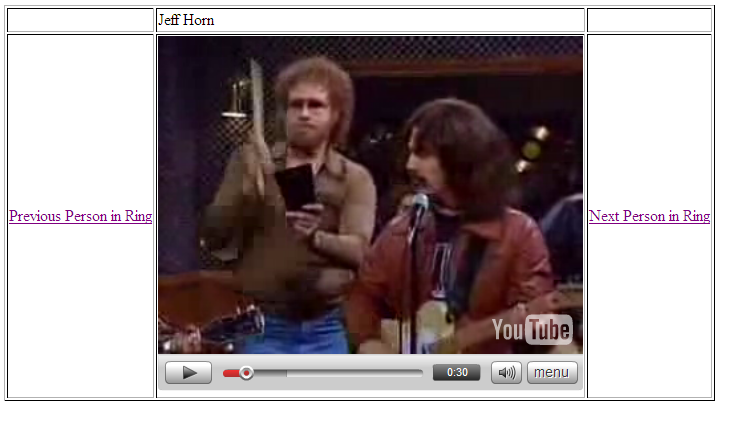
- GROUP CRADE COMPONENT: The RING should be complete.
(10 pts)
(5 pts = 5 * fraction of links that
are working )
- Everyone is included
(5 pts
= 5 * fraction of class that is included)
- Grading:
Total 30 pts
= 20 points individual component + 10 points group component- Older Example Code:
- (Warning! This is older code that does not necessarily
live up to our current high standards of HTML 4 compatibility!
For example, they are all missing DOCTYPE declarations.)
- demo9.html (tables) and
demo10.html (tables) of our text book web site.
- Here is a table example of our own.
- Turn-in Procedure: Just email me your web site URLs. (jhorn@nmu.edu)
( 2 pts of your individual grade
component for sendimg me the correct public URL)
Don't forget to put "CS 101: A4" in the subject line.
(2 pts of your
individual grade component for correct subject line!)
NOTE: Using My Network Places:
(only for Windows XP.
Windows 7 users must use "Network Locations", while Mac OS users can try
"Fetch". Currently, I don't have on-line instructions for these services;
we'll cover them in class!)
- Windows XP users go to Start -> My Network
Places. On the left panel, top, click on "Add
a Network Place" to run the wizard. In the wizard,
choose "Next" then "Choose another network location", then "next"
then type into the address window: "ftp://myweb.nmu.edu"
then "Next" then UNCHECK "Log on anonymously" then "Next" then type
in whatever you want to name this icon in your "Network Places
folder (e.g., "myweb"). Then finish the wizard.
- In "My Network Places", click on the icon for your "myweb"
account (the one you made in step 1 above!). You now see what
is in your folder on the server. Create a new folder and name
it "pub" (lower case). Open it. Everything you put in
here, and only what you put in here, will be "on the web"!
- Drag and drop, or cut and paste, your A4 folder (or
whatever you name it)
into your pub
folder on myweb.
- Test it all by giving your browser this URL: "http://myweb.nmu.edu/~jhorn/A4/A4.html",
substituting your NMU user ID for "jhorn", your folder name for
"A4", and your file name for "A4.html". Keep the "~" but don't
put in "pub" (that is understood).