Chapter 3: Row & Column Operations
Working with data inevitably leads to the need to filter out subsets, to sort data based on some rule and to find the unique observations. We often need to create new variables as modifications of existing ones. Some variables are often more important than others, thus we need to select them. Finally, renaming and maving variables to within view often makes working with data easier. The tools you learn here make all this possible.
They are all contained in dplyr, which is included in the tidyverse, so as usual:
| Row Functions | Column Functions |
|---|---|
| filter | mutate |
| arrange | select |
| distinct | rename |
| relocate | |
| select |
Row Functions
These functions change which rows are present in the data and keep the columns the same.
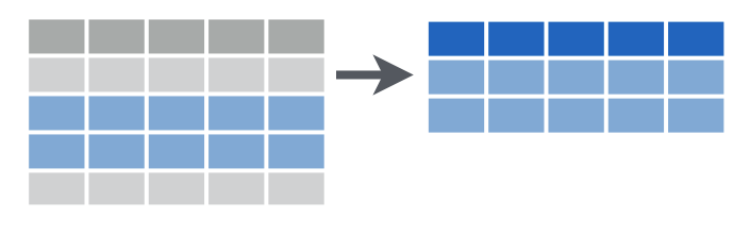
Filter observations based on conditions
Subset oberservations (rows) based on a logical condition.
Textbook link: filter
Arrange rows by value in ascending order
Textbook link: arrange
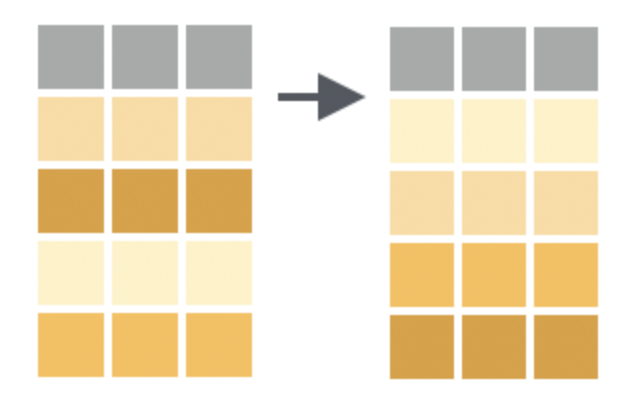
This permutes the ordering of the rows. (Note the r in arrange, r for rows.) If you provide more than one column name, each additional column will be used to break ties in the values of preceding columns. To arrange in descending order use desc().
Pipe to head() if you only want to see the first few results:
  species    island bill_len bill_dep flipper_len body_mass    sex year
1  Adelie     Dream     32.1     15.5         188      3050 female 2009
2  Adelie     Dream     33.1     16.1         178      2900 female 2008
3  Adelie Torgersen     33.5     19.0         190      3600 female 2008
4  Adelie     Dream     34.0     17.1         185      3400 female 2008
5  Adelie Torgersen     34.1     18.1         193      3475   <NA> 2007
6 Adelie Torgersen 34.4 18.4 184 3325 female 2007 species island bill_len bill_dep flipper_len body_mass sex year
1 Adelie Torgersen 34.6 21.1 198 4400 male 2007
2 Adelie Torgersen 33.5 19.0 190 3600 female 2008
3 Adelie Torgersen 35.1 19.4 193 4200 male 2008
4 Adelie Torgersen 37.3 20.5 199 3775 male 2009
5 Adelie Torgersen 38.6 21.2 191 3800 male 2007
6 Adelie Dream 39.2 21.1 196 4150 male 2007Keep distinct rows
Use distinct on several column names to find unique combinations. The .keep_all = TRUE argument is used to retain all columsns
# this keeps all unique (origin, dest) pairs
pak::pkg_install("nycflights13")
library(nycflights13)
flights |> distinct(origin,dest)
# A tibble: 224 × 2
origin dest
<chr> <chr>
1 EWR IAH
2 LGA IAH
3 JFK MIA
4 JFK BQN
5 LGA ATL
6 EWR ORD
7 EWR FLL
8 LGA IAD
9 JFK MCO
10 LGA ORD
# ℹ 214 more rows# A tibble: 224 × 2
origin dest
<chr> <chr>
1 EWR IAH
2 EWR ORD
3 EWR FLL
4 EWR SFO
5 EWR LAS
6 EWR PBI
7 EWR MIA
8 EWR ATL
9 EWR PHX
10 EWR MSP
# ℹ 214 more rowsColumn functions
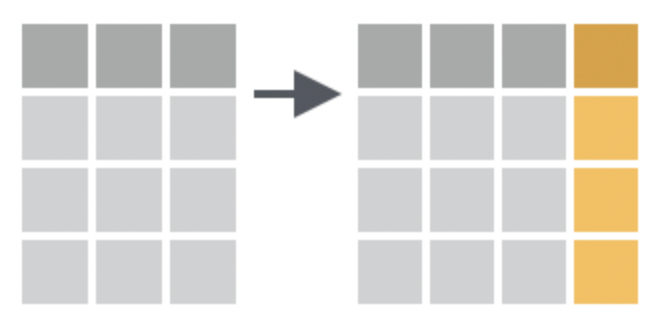
Create new variables
Textbook link: mutate
Add new variables (columns), usually via a formula involving existing ones. Use these helper functions to relocate or newly created variables.
.before = 1.after = some_var_name
library(palmerpenguins)
penguins |> mutate(bill_ratio = bill_length_mm / bill_depth_mm, .after = island)
# A tibble: 344 × 9
species island bill_ratio bill_length_mm bill_depth_mm flipper_length_mm
<fct> <fct> <dbl> <dbl> <dbl> <int>
1 Adelie Torgersen 2.09 39.1 18.7 181
2 Adelie Torgersen 2.27 39.5 17.4 186
3 Adelie Torgersen 2.24 40.3 18 195
4 Adelie Torgersen NA NA NA NA
5 Adelie Torgersen 1.90 36.7 19.3 193
6 Adelie Torgersen 1.91 39.3 20.6 190
7 Adelie Torgersen 2.19 38.9 17.8 181
8 Adelie Torgersen 2 39.2 19.6 195
9 Adelie Torgersen 1.88 34.1 18.1 193
10 Adelie Torgersen 2.08 42 20.2 190
# ℹ 334 more rows
# ℹ 3 more variables: body_mass_g <int>, sex <fct>, year <int>Select
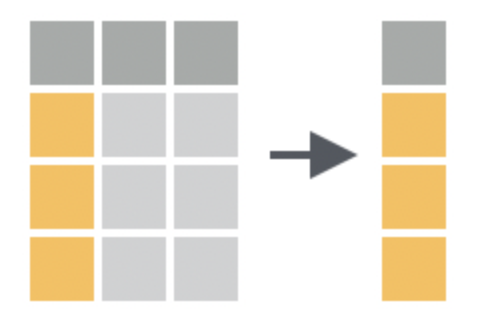
The function select() is used to choose which columns you want to keep. You can use the helper functions starts_with(), ends_with(), contains(), or num_range() to select columns based on their names. You can also use where() to select columns based on their type (numeric, factor, character).
This is useful if you have too many columns and you with choose which columns you wish to view.
Textbook link: select
Select tips & helper functions
- use : to select a range
# A tibble: 6 × 4
  species island    bill_length_mm bill_depth_mm
  <fct>   <fct>              <dbl>         <dbl>
1 Adelie  Torgersen           39.1          18.7
2 Adelie  Torgersen           39.5          17.4
3 Adelie  Torgersen           40.3          18
4 Adelie  Torgersen           NA            NA
5 Adelie  Torgersen           36.7          19.3
6 Adelie Torgersen 39.3 20.6# A tibble: 6 × 3
species island bill_length_mm
<fct> <fct> <dbl>
1 Adelie Torgersen 39.1
2 Adelie Torgersen 39.5
3 Adelie Torgersen 40.3
4 Adelie Torgersen NA
5 Adelie Torgersen 36.7
6 Adelie Torgersen 39.3- use ! to exclude
# A tibble: 6 × 6
  bill_length_mm bill_depth_mm flipper_length_mm body_mass_g sex     year
           <dbl>         <dbl>             <int>       <int> <fct>  <int>
1           39.1          18.7               181        3750 male    2007
2           39.5          17.4               186        3800 female  2007
3           40.3          18                 195        3250 female  2007
4           NA            NA                  NA          NA <NA>    2007
5           36.7          19.3               193        3450 female  2007
6 39.3 20.6 190 3650 male 2007- use
wherewithis.factor, oris.numeric, oris.character
Example
# A tibble: 6 × 5
  bill_length_mm bill_depth_mm flipper_length_mm body_mass_g  year
           <dbl>         <dbl>             <int>       <int> <int>
1           39.1          18.7               181        3750  2007
2           39.5          17.4               186        3800  2007
3           40.3          18                 195        3250  2007
4           NA            NA                  NA          NA  2007
5           36.7          19.3               193        3450  2007
6           39.3          20.6               190        3650  2007
# general rule of thumb: use `where()` inside `select()`, `mutate(across(...))` or `pick()`
# and apply where() to is.numeric, is.factor, or is.character starts_with("abc"): matches names that begin with “abc”.
Example
# Select columns that start with "bill"
penguins |> select(starts_with("bill")) |> head()
# A tibble: 6 × 2
bill_length_mm bill_depth_mm
<dbl> <dbl>
1 39.1 18.7
2 39.5 17.4
3 40.3 18
4 NA NA
5 36.7 19.3
6 39.3 20.6# general rule of thumb: use `starts_with()`, `ends_with()`, `contains()`, or `num_range()` to select columns based on their names
# you do not combine these with `where()`, they are used directly inside `select()`ends_with("xyz"): matches names that end with “xyz”.
contains("ijk"): matches names that contain “ijk”.num_range("x", 1:3): matchesx1, x2andx3.
Example
# A tibble: 6 × 2
     b1    b3
  <dbl> <dbl>
1    39  57.8
2    40  56.9
3    40  58.3
4    NA  NA
5    37  56
6 39 59.9- To drop colummns:
select(data,-c(this_col,that_col))
Example
# A tibble: 6 × 6
  bill_length_mm bill_depth_mm flipper_length_mm body_mass_g sex     year
           <dbl>         <dbl>             <int>       <int> <fct>  <int>
1           39.1          18.7               181        3750 male    2007
2           39.5          17.4               186        3800 female  2007
3           40.3          18                 195        3250 female  2007
4           NA            NA                  NA          NA <NA>    2007
5           36.7          19.3               193        3450 female  2007
6 39.3 20.6 190 3650 male 2007- use regular expressions:
select(matches("^b.*mm"))
Note: ^b.*mm is a regular expression that matches a b followed by anything . any number times * followed by mm. See regex101.com
How where() works
- You pass a function (like is.numeric, is.factor, or is.character) into where().
- It evaluates that function on every column in your data frame.
- It keeps only the columns where the function returns TRUE
Common Use Cases
You typically use where() inside select(), mutate(across(...)) or pick()
Select all numeric columns
# A tibble: 344 × 8
      b1    b2    b3 bill_length_mm bill_depth_mm flipper_length_mm body_mass_g
   <dbl> <dbl> <dbl>          <dbl>         <dbl>             <int>       <int>
 1    39  350.  57.8           39.1          18.7               181        3750
 2    40  303.  56.9           39.5          17.4               186        3800
 3    40  324   58.3           40.3          18                 195        3250
 4    NA   NA   NA             NA            NA                  NA          NA
 5    37  372.  56             36.7          19.3               193        3450
 6    39  424.  59.9           39.3          20.6               190        3650
 7    39  317.  56.7           38.9          17.8               181        3625
 8    39  384.  58.8           39.2          19.6               195        4675
 9    34  328.  52.2           34.1          18.1               193        3475
10    42  408.  62.2           42            20.2               190        4250
# ℹ 334 more rows
# ℹ 1 more variable: year <int>
Apply a transformation to all factor columns
# A tibble: 344 × 11
      b1    b2    b3 species island    bill_length_mm bill_depth_mm
   <dbl> <dbl> <dbl> <chr>   <chr>              <dbl>         <dbl>
 1    39  350.  57.8 Adelie  Torgersen           39.1          18.7
 2    40  303.  56.9 Adelie  Torgersen           39.5          17.4
 3    40  324   58.3 Adelie  Torgersen           40.3          18
 4    NA   NA   NA   Adelie  Torgersen           NA            NA
 5    37  372.  56   Adelie  Torgersen           36.7          19.3
 6    39  424.  59.9 Adelie  Torgersen           39.3          20.6
 7    39  317.  56.7 Adelie  Torgersen           38.9          17.8
 8    39  384.  58.8 Adelie  Torgersen           39.2          19.6
 9    34  328.  52.2 Adelie  Torgersen           34.1          18.1
10    42  408.  62.2 Adelie  Torgersen           42            20.2
# ℹ 334 more rows
# ℹ 4 more variables: flipper_length_mm <int>, body_mass_g <int>, sex <chr>,
#   year <int>
Use custom conditions with formula shortcuts
df %>% select(where(~ is.numeric(.x) & mean(.x, na.rm = TRUE) > 10))# A tibble: 344 × 8
b1 b2 b3 bill_length_mm bill_depth_mm flipper_length_mm body_mass_g
<dbl> <dbl> <dbl> <dbl> <dbl> <int> <int>
1 39 350. 57.8 39.1 18.7 181 3750
2 40 303. 56.9 39.5 17.4 186 3800
3 40 324 58.3 40.3 18 195 3250
4 NA NA NA NA NA NA NA
5 37 372. 56 36.7 19.3 193 3450
6 39 424. 59.9 39.3 20.6 190 3650
7 39 317. 56.7 38.9 17.8 181 3625
8 39 384. 58.8 39.2 19.6 195 4675
9 34 328. 52.2 34.1 18.1 193 3475
10 42 408. 62.2 42 20.2 190 4250
# ℹ 334 more rows
# ℹ 1 more variable: year <int>Make sure you know how to:
Use select() and these helper functions to create various subsets of penguins data.
rename
Explicitly rename variables. Do so in bulk with janitor::clean_names
penguins |> rename(bill_length = bill_length_mm, bill_depth = bill_depth_mm)# A tibble: 344 × 8
species island bill_length bill_depth flipper_length_mm body_mass_g sex
<fct> <fct> <dbl> <dbl> <int> <int> <fct>
1 Adelie Torgersen 39.1 18.7 181 3750 male
2 Adelie Torgersen 39.5 17.4 186 3800 female
3 Adelie Torgersen 40.3 18 195 3250 female
4 Adelie Torgersen NA NA NA NA <NA>
5 Adelie Torgersen 36.7 19.3 193 3450 female
6 Adelie Torgersen 39.3 20.6 190 3650 male
7 Adelie Torgersen 38.9 17.8 181 3625 female
8 Adelie Torgersen 39.2 19.6 195 4675 male
9 Adelie Torgersen 34.1 18.1 193 3475 <NA>
10 Adelie Torgersen 42 20.2 190 4250 <NA>
# ℹ 334 more rows
# ℹ 1 more variable: year <int>relocate
Permute the ordering of columns (notice the c in relocate, c for columns)
You can also achieve this with select()
relocate(penguins, sex, year)
# versus
select(penguins, sex,year, everything())
Assignment-4
- Due in the Samba folder - Wednesday, 9/16
- Complete the following exercises:
- Row verb exercises: https://r4ds.hadley.nz/data-transform.html#exercises
- Column verb exercises: https://r4ds.hadley.nz/data-transform.html#exercises-1