#install.packages("ggstats")
library(ggstats)
library(tidyverse)Geoms & EDA w/Titanic Data
Statistical Transformations
These notes are based on the ggstat vignette.
stat_prop() is part of ggstat, an extension to ggplot2. It is a variation of stat_count() allowing to compute custom proportions according to the byaesthetic defining the denominator (i.e. all proportions for a same value of by will sum to 1). The by aesthetic should be a factor. Therefore, stat_prop() requires the by aesthetic and this by aesthetic should be a factor.
Setup
Libraries & ggplot extensions
The Titanic dataset
The Titanic dataset (in R’s datasets) is a 4-D array. Access it like this:
# Examine all the entries
Titanic[,,,]
, , Age = Child, Survived = No
Sex
Class Male Female
1st 0 0
2nd 0 0
3rd 35 17
Crew 0 0
, , Age = Adult, Survived = No
Sex
Class Male Female
1st 118 4
2nd 154 13
3rd 387 89
Crew 670 3
, , Age = Child, Survived = Yes
Sex
Class Male Female
1st 5 1
2nd 11 13
3rd 13 14
Crew 0 0
, , Age = Adult, Survived = Yes
Sex
Class Male Female
1st 57 140
2nd 14 80
3rd 75 76
Crew 192 20# The first-class data
Titanic[1,,,], , Survived = No
Age
Sex Child Adult
Male 0 118
Female 0 4
, , Survived = Yes
Age
Sex Child Adult
Male 5 57
Female 1 140# The 3rd-class data
Titanic[3,,,], , Survived = No
Age
Sex Child Adult
Male 35 387
Female 17 89
, , Survived = Yes
Age
Sex Child Adult
Male 13 75
Female 14 76# The Female 2nd-class data
Titanic[1,2,,] Survived
Age No Yes
Child 0 1
Adult 4 140To tidy this data we can use as.data.frame
d <- as.data.frame(Titanic)
glimpse(d)
Rows: 32
Columns: 5
$ Class <fct> 1st, 2nd, 3rd, Crew, 1st, 2nd, 3rd, Crew, 1st, 2nd, 3rd, Crew…
$ Sex <fct> Male, Male, Male, Male, Female, Female, Female, Female, Male,…
$ Age <fct> Child, Child, Child, Child, Child, Child, Child, Child, Adult…
$ Survived <fct> No, No, No, No, No, No, No, No, No, No, No, No, No, No, No, N…
$ Freq <dbl> 0, 0, 35, 0, 0, 0, 17, 0, 118, 154, 387, 670, 4, 13, 89, 3, 5…Count people on board by class and sex.
group_by(d,Class,Sex) |> summarize(n = sum(Freq))# A tibble: 8 × 3
# Groups: Class [4]
Class Sex n
<fct> <fct> <dbl>
1 1st Male 180
2 1st Female 145
3 2nd Male 179
4 2nd Female 106
5 3rd Male 510
6 3rd Female 196
7 Crew Male 862
8 Crew Female 23stat_prop() examples
Counts and percentages on a stacked bar
In the following example, we:
- use
stat = "prop"to tellgeom_text()to usestat_prop() - used the
position_stackin to place text atop its stack
p <- ggplot(d) +
  # what happens when you remove "weight = Freq"?
  aes(x = Class, fill = Survived, weight = Freq) +
  geom_bar() +
  # halfway up the stack
  geom_text(stat = "prop", position = position_stack(.5)) +
  labs(title = "Both Counts & Percentages", y = "Total")

print(p)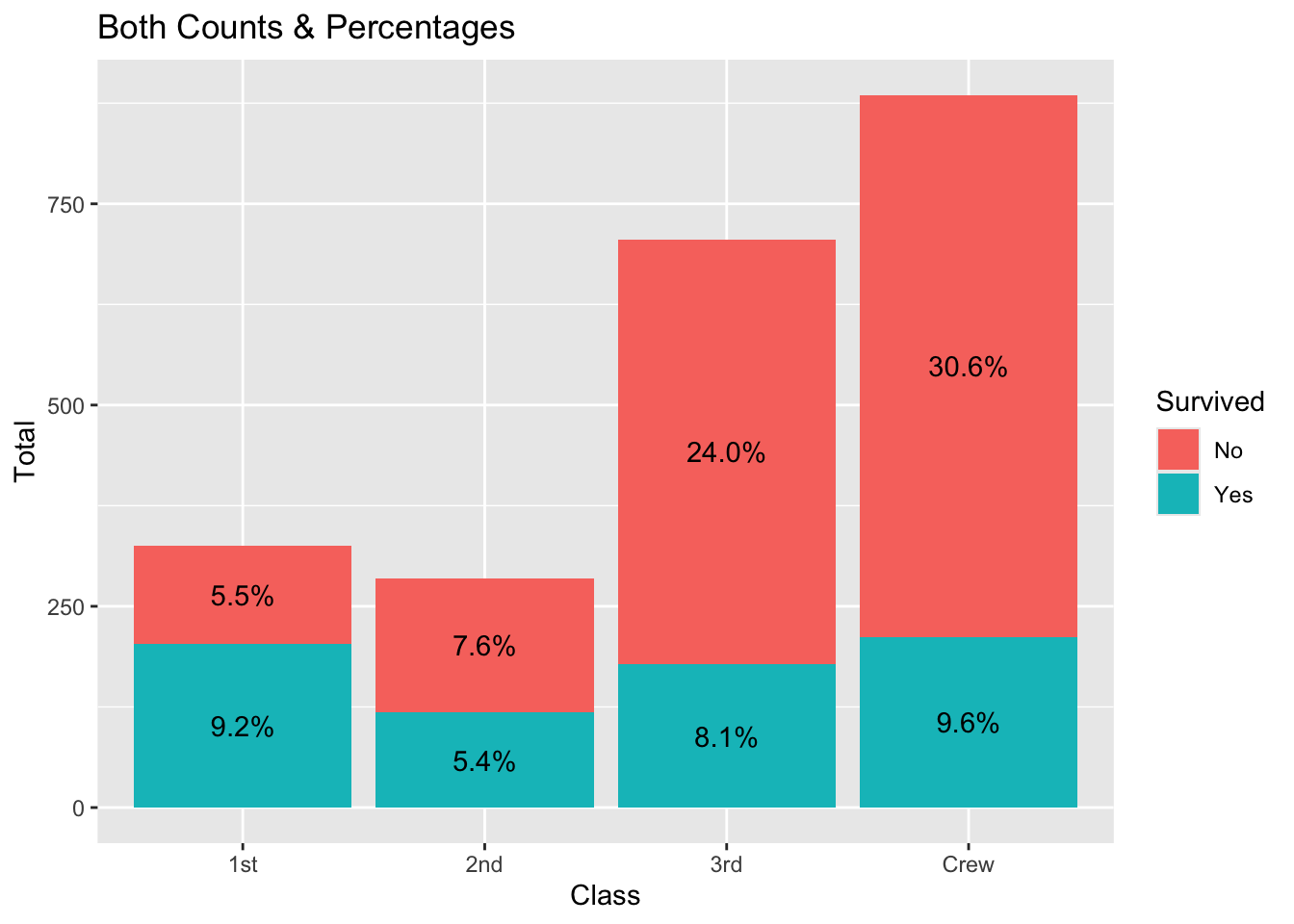
Proportions within each class
In the following example, we:
use
stat = "prop"tell`geom_text()to usestat_prop()defined the by aesthetic (here we want to compute the proportions separately for each value of Class)
used
position_fill()when callinggeom_text()to match the position = “fill” in geom_bar() and place text at the 0.5 (halfway) mark of each bar
p <- ggplot(d) +
  aes(x = Class, fill = Survived, weight = Freq, by = Class) +
  geom_bar(position = "fill") +
  geom_text(stat = "prop", position = position_fill(0.5)) +
  labs(title = "Proportions & Percentages", y = "Percent")

print(p)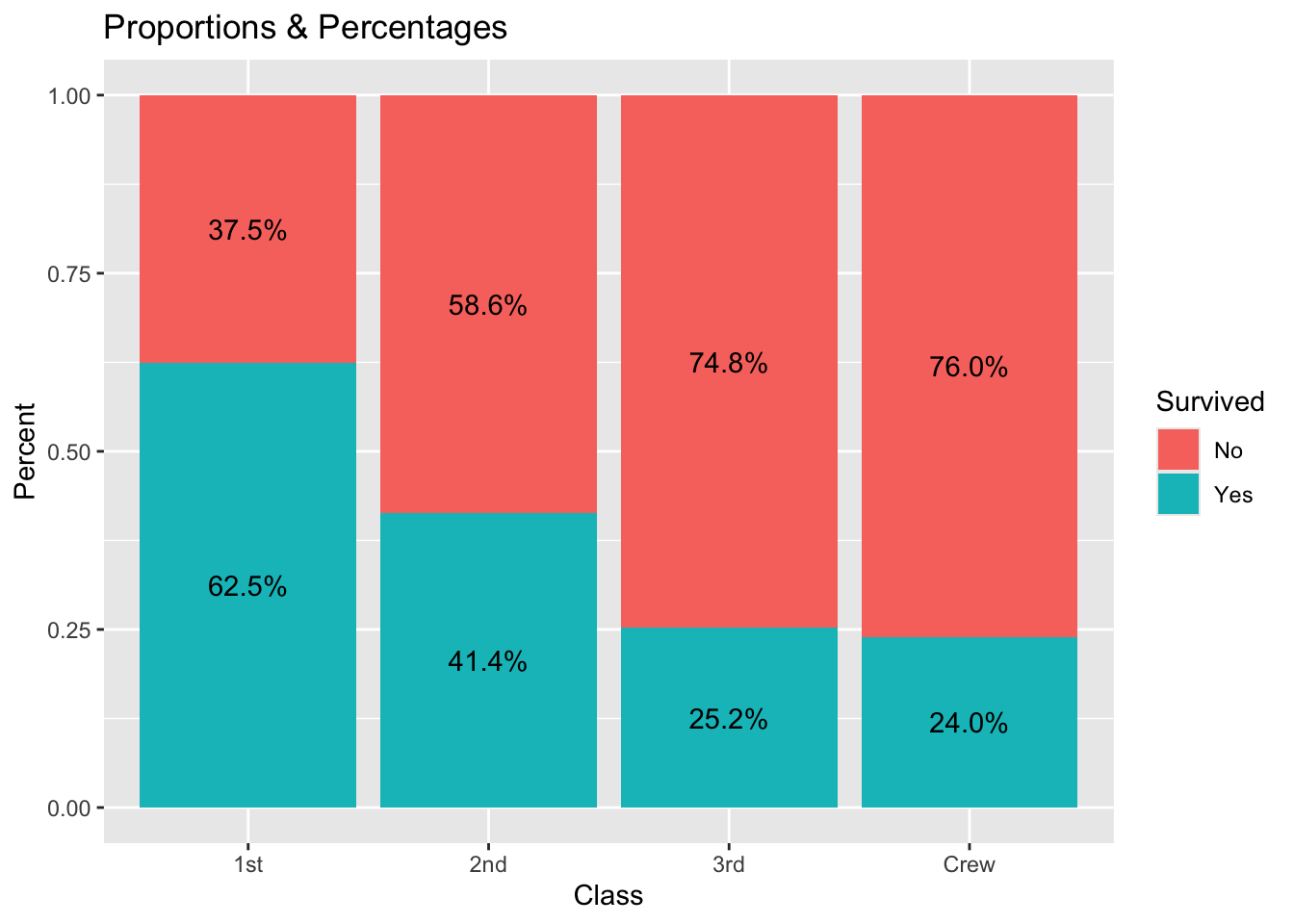
Facet over gender
p + facet_grid(~Sex) 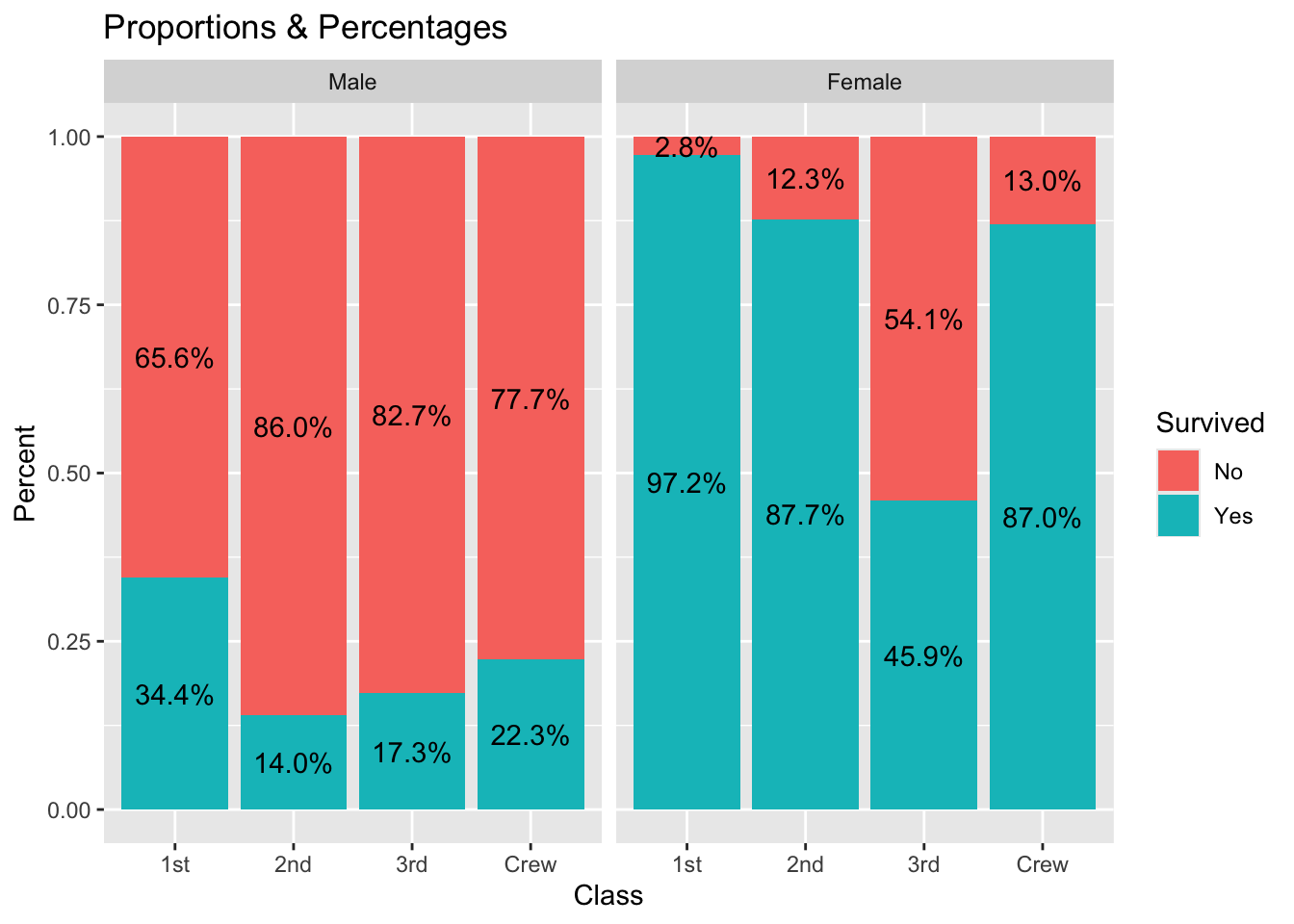
Displaying proportions of the total
If you want to display proportions of the total, simply map the by aesthetic to 1. Here an example using a stacked bar chart.
ggplot(d) +
  aes(x = Class, fill = Survived, weight = Freq, by = 1) +
  geom_bar() +
  geom_text(
    aes(label = scales::percent(after_stat(prop), accuracy = 1)),
    stat = "prop",
    position = position_stack(.5)) +
  labs(title = "Percentages of total")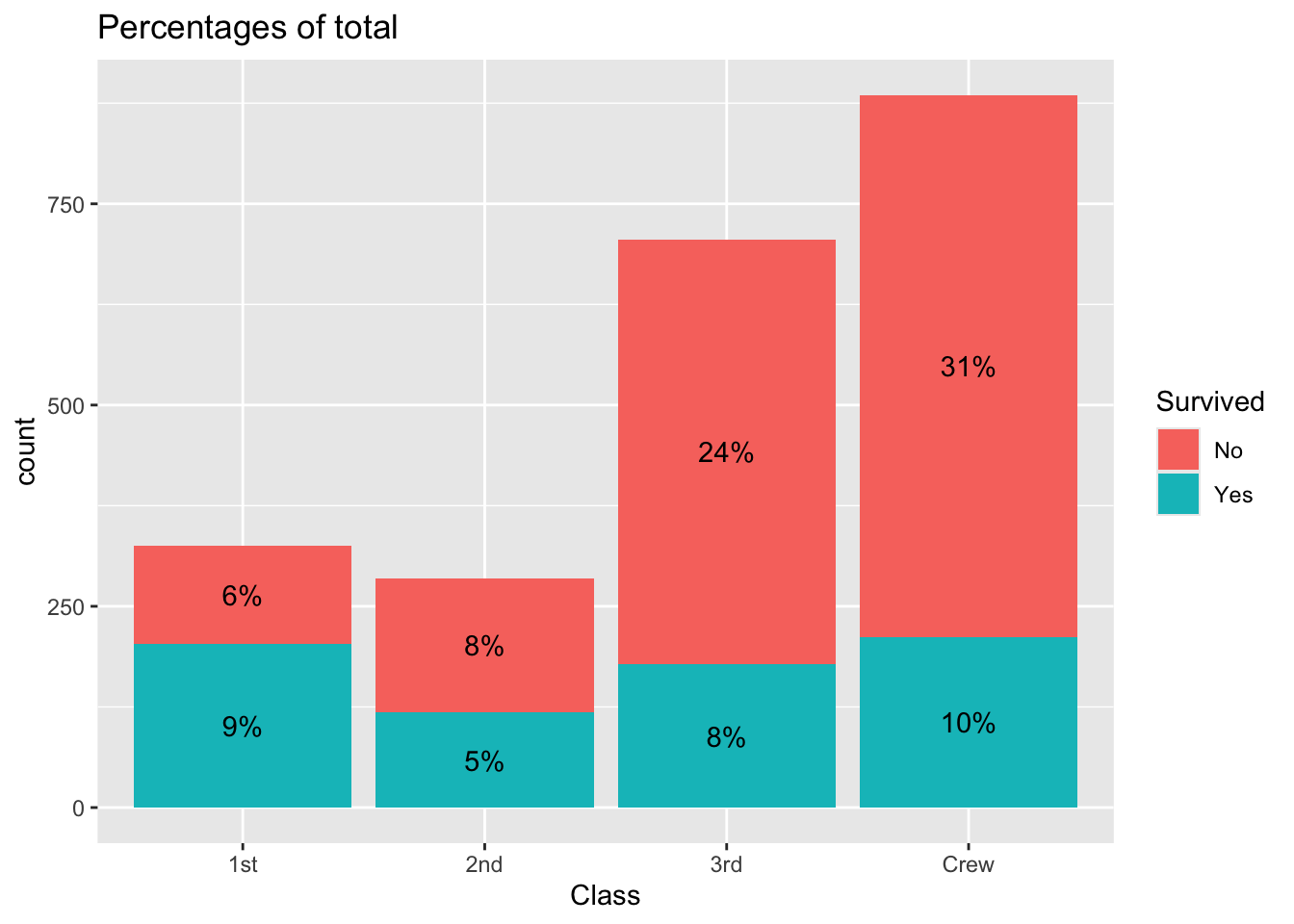
A dodged bar plot to compare two distributions
A dodged bar plot could be used to compare two distributions.
ggplot(d) +
  aes(x = Class, fill = Sex, weight = Freq, by = Sex) +
  geom_bar(position = "dodge")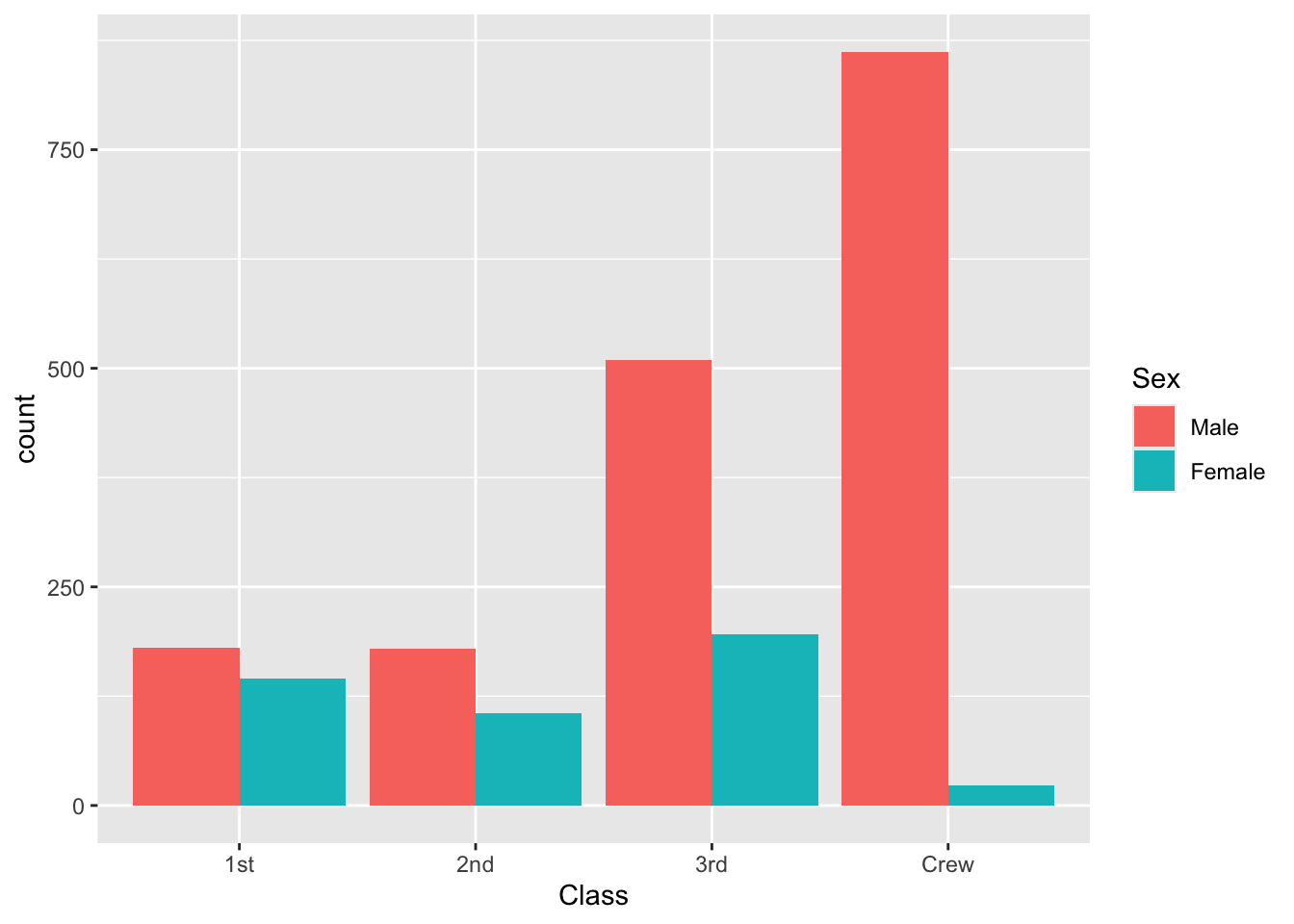
Above, we see more men than women in each category. Thus, it is difficult to see if first class is over- or under-represented among women, due to the fact they were muany more men on the boat. stat_prop() could be used to adjust the graph by displaying instead the proportion within each category (i.e. here the proportion by sex).
That is, we see that half the men on-board were crew, and roughly 40% of the women had 3rd class tickets.
ggplot(d) +
  aes(x = Class, fill = Sex, weight = Freq, by = Sex, y = after_stat(prop)) +
  geom_bar(stat = "prop", position = "dodge") +
  scale_y_continuous(labels = scales::percent)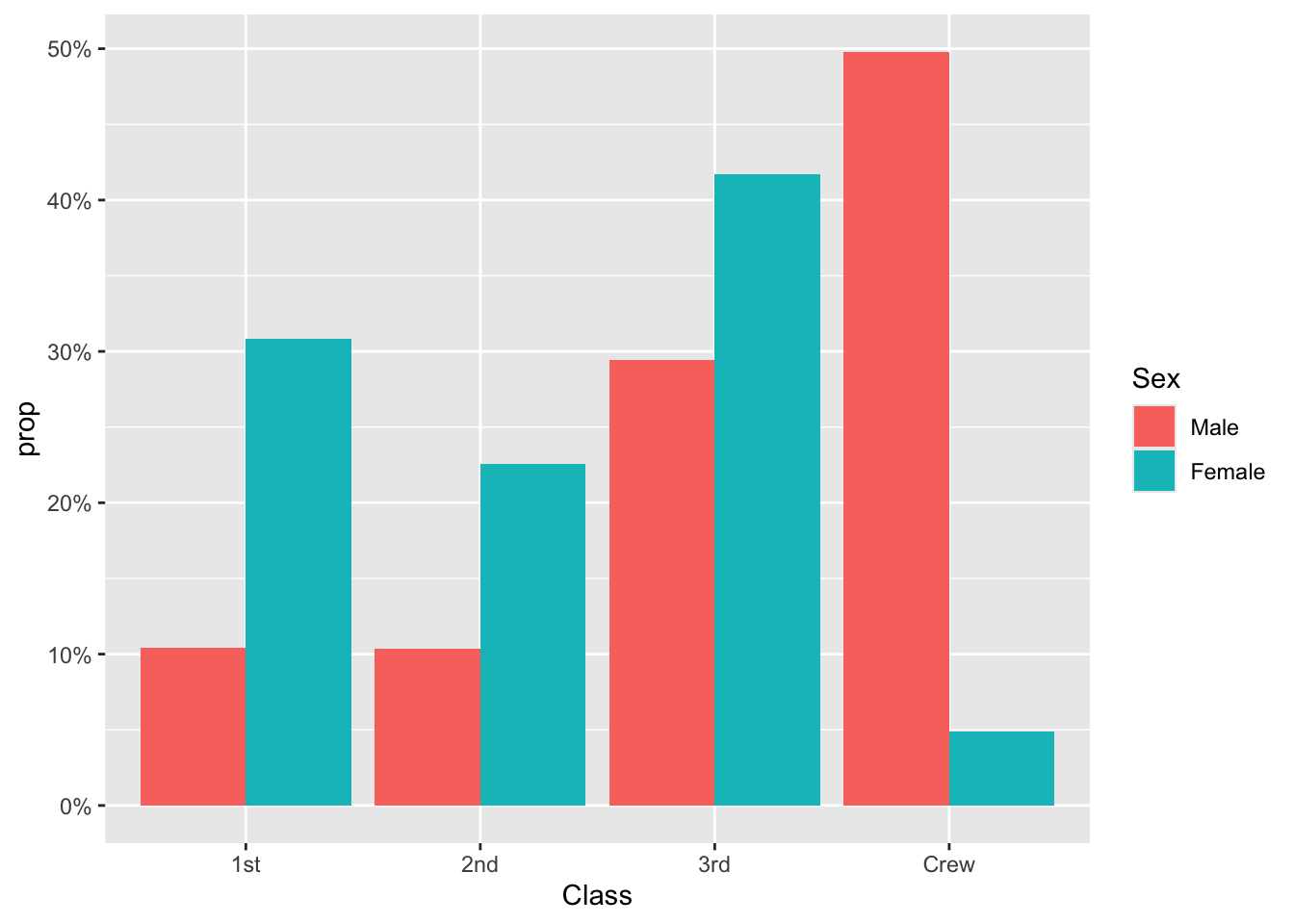
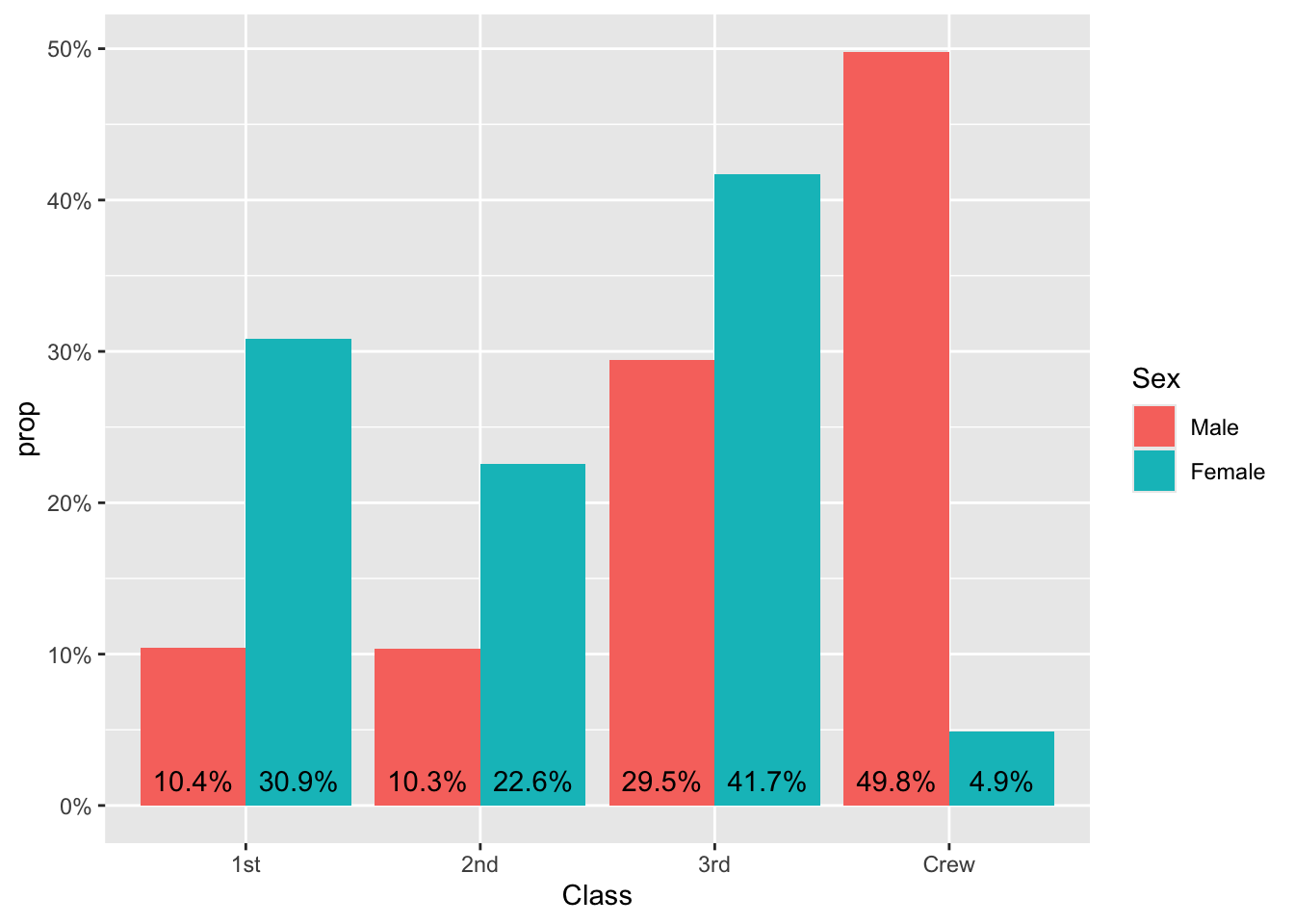
Finally, the same plot with labels
ggplot(d) +
  aes(x = Class, fill = Sex, weight = Freq, by = Sex, y = after_stat(prop)) +
  geom_bar(stat = "prop", position = "dodge") +
  scale_y_continuous(labels = scales::percent) +
  geom_text(
    aes(
      label = scales::percent(after_stat(prop), accuracy = .1),
      y = after_stat(0.01)),
    vjust = "bottom",
    # what does the .9 do?
    position = position_dodge(.9),
    stat = "prop"
  )
For more see the geom_text vignette.
Alternative: circles instead of bar plots & choosing colors
# compute the percentages yourself, instead of having the geom_ do it
ds <- group_by(d,Class,Survived) |>
  summarize(Total = sum(Freq),
            .groups = "drop") |>
  # what happens when you remove .groups = "drop"
  mutate(n = sum(Total),
         Percent = 100*round(Total/n,2))
As a first pass, suppose you create the below. Improve it.
ggplot(ds,aes(x=Class,y=Survived,size=Total, color=Survived)) +
  geom_point() +
  geom_text(aes(label = Percent))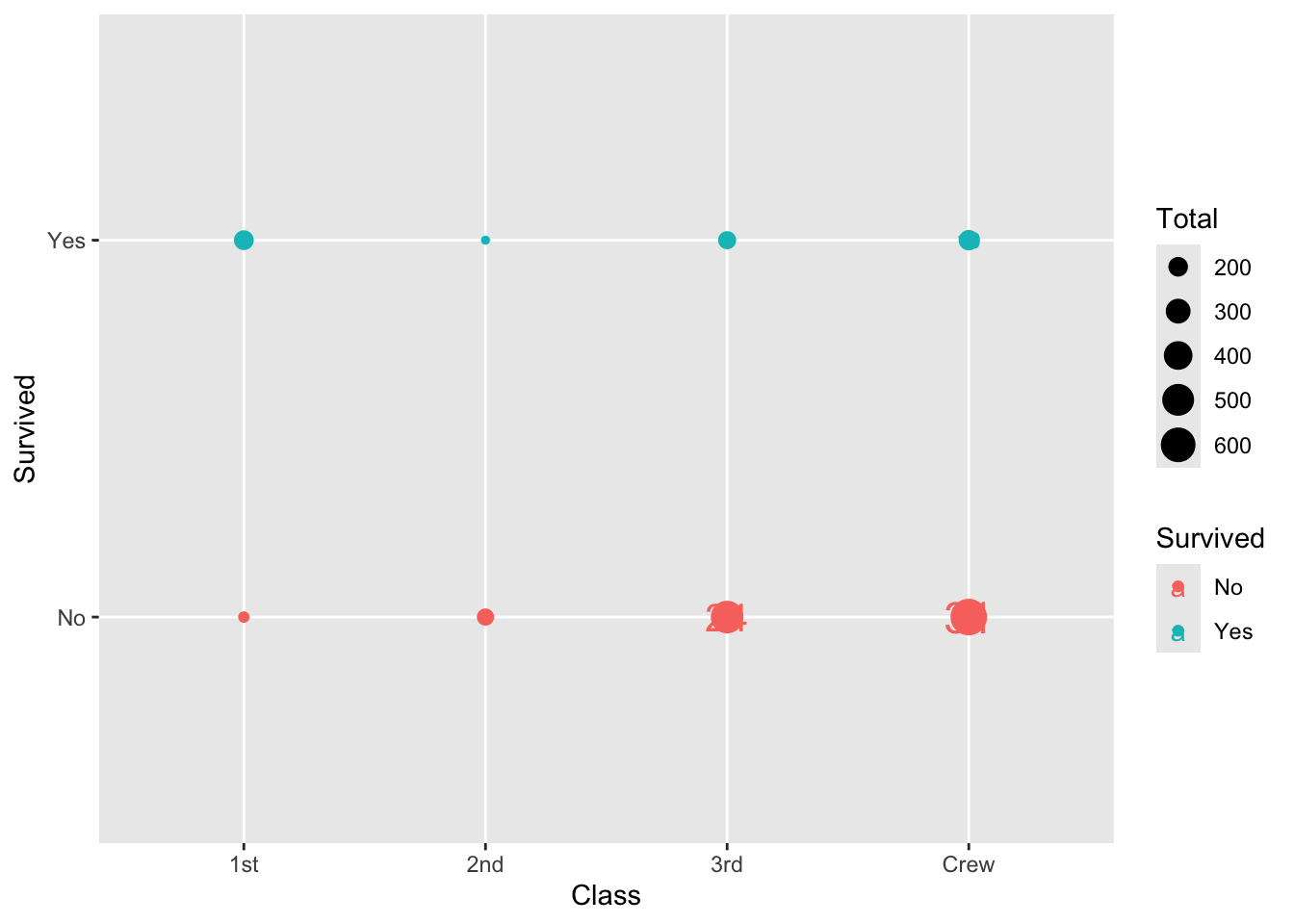
Ways to improve
- Why is the color of the label the same as the point?
- How to enlarge the size of the points?
- How to change the color of the points?
- How to remove the legend?
Choosing colors
One manual way to control colors is first obtain a color palette. The package viridis contains palettes that make plots that are pretty, better represent your data, easier to read by those with colorblindness, and print well in gray scale.
# Grab 3 colors (spaced out by default) from the viridis palette.
library(scales)
pal <- viridis_pal()(n=3)

# display the colors in the palette
show_col(pal)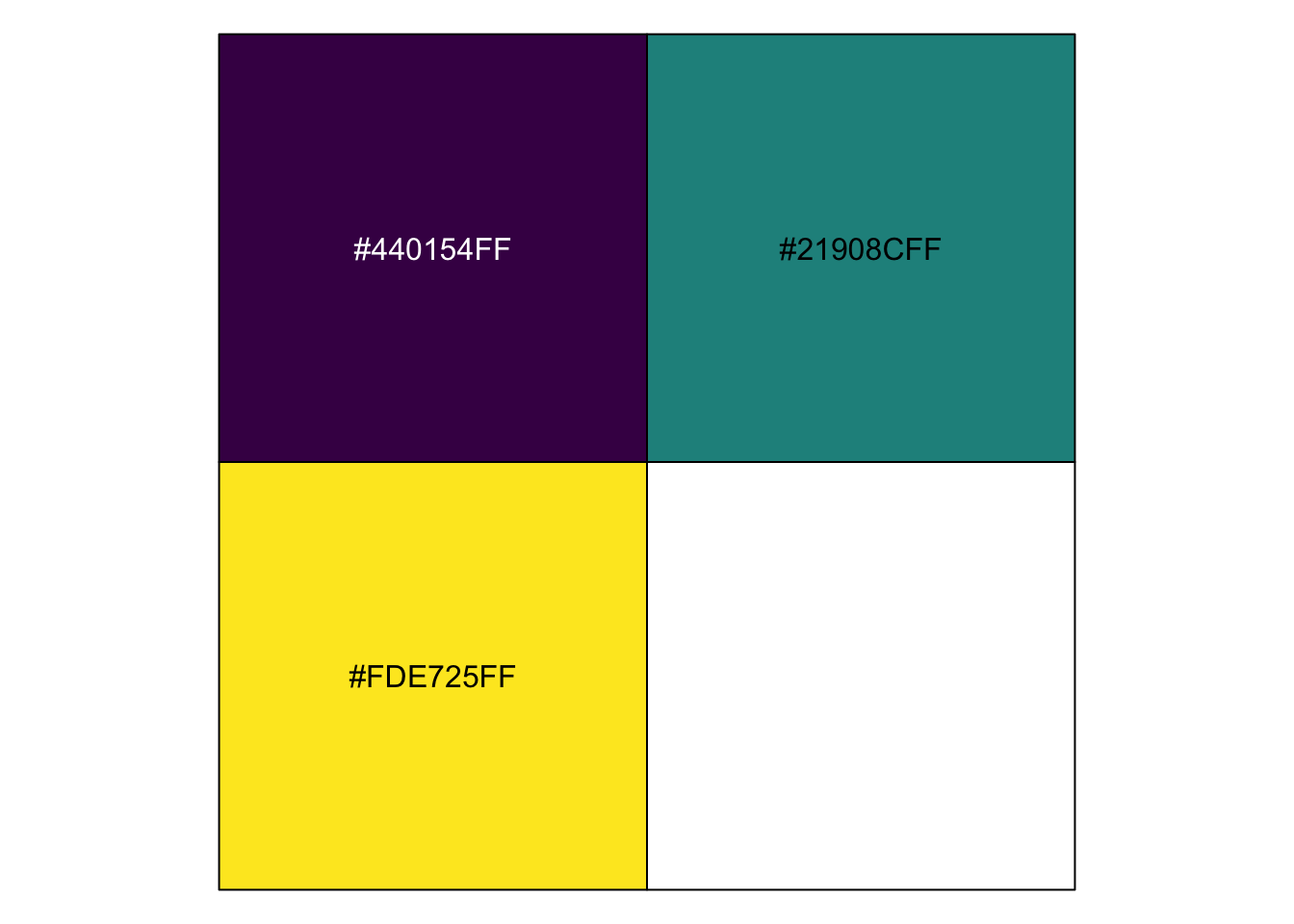
# mapping to levels isn't necessary, but it might help in more complicated scenarios
clr <- tibble(
  "purple" = pal[1],
  "green"  = pal[2],
  "yellow" = pal[3]
)
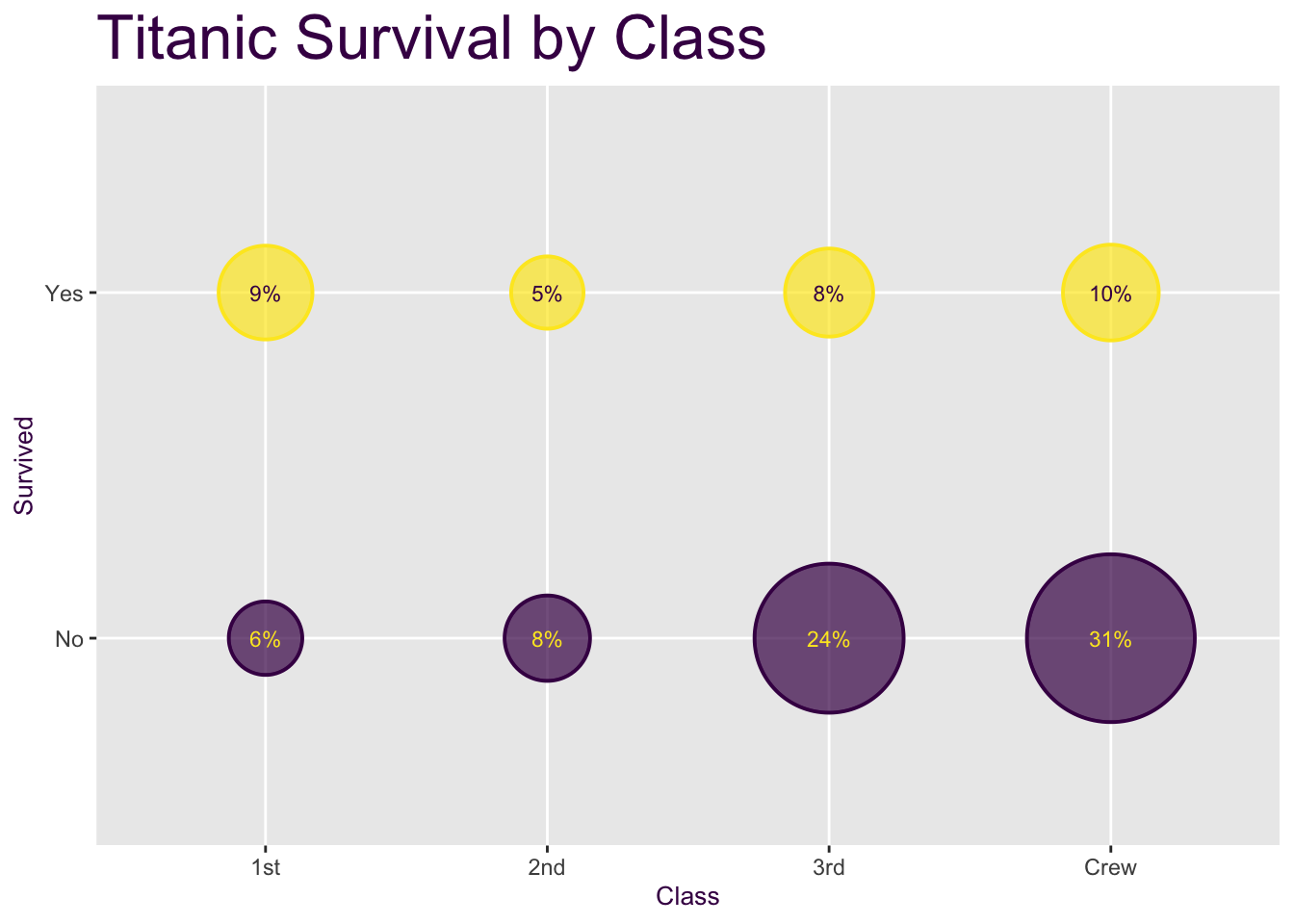
Building the plot step by step
Below, we build up the final plot one layer at a time. Each step adds a single change so you can see exactly what each piece of code contributes to the final result.
library(tidyverse)
library(ggnewscale)
Step 1: the basic bubble plot
We start with points sized by Total and colored by Survived, using the default ggplot2 color scale.
ggplot(ds,aes(x=Class,y=Survived,size=Total)) +
  geom_point(aes(color=Survived),alpha=.7) +
  scale_size_area(max_size = 30)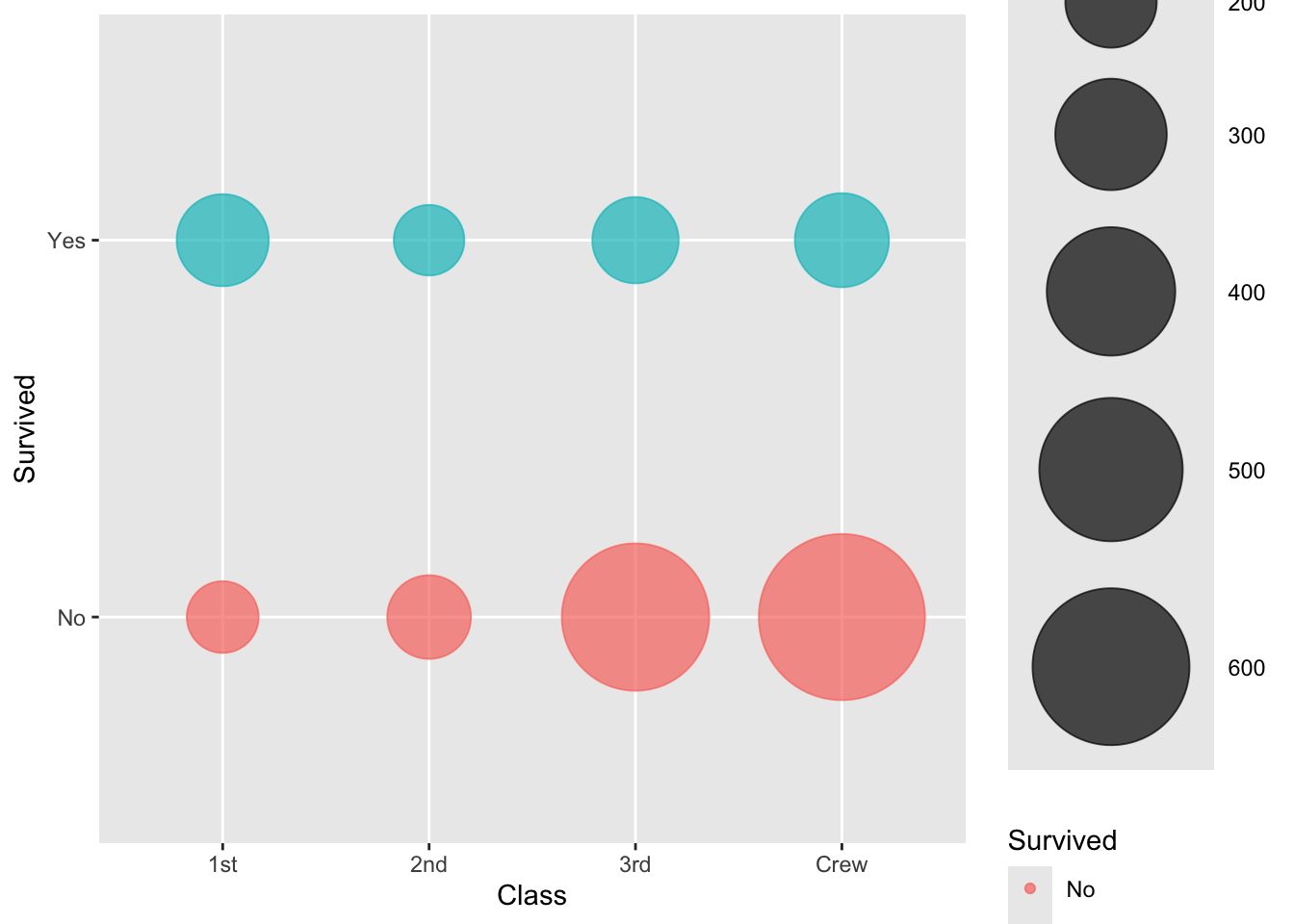
Step 2: use our own colors
We swap in our own palette (from clr), mapping No to purple and Yes to yellow.
ggplot(ds,aes(x=Class,y=Survived,size=Total)) +
  geom_point(aes(color=Survived),alpha=.7) +
  scale_size_area(max_size = 30) +
  scale_color_manual(values = c("No" = clr$purple, "Yes" = clr$yellow))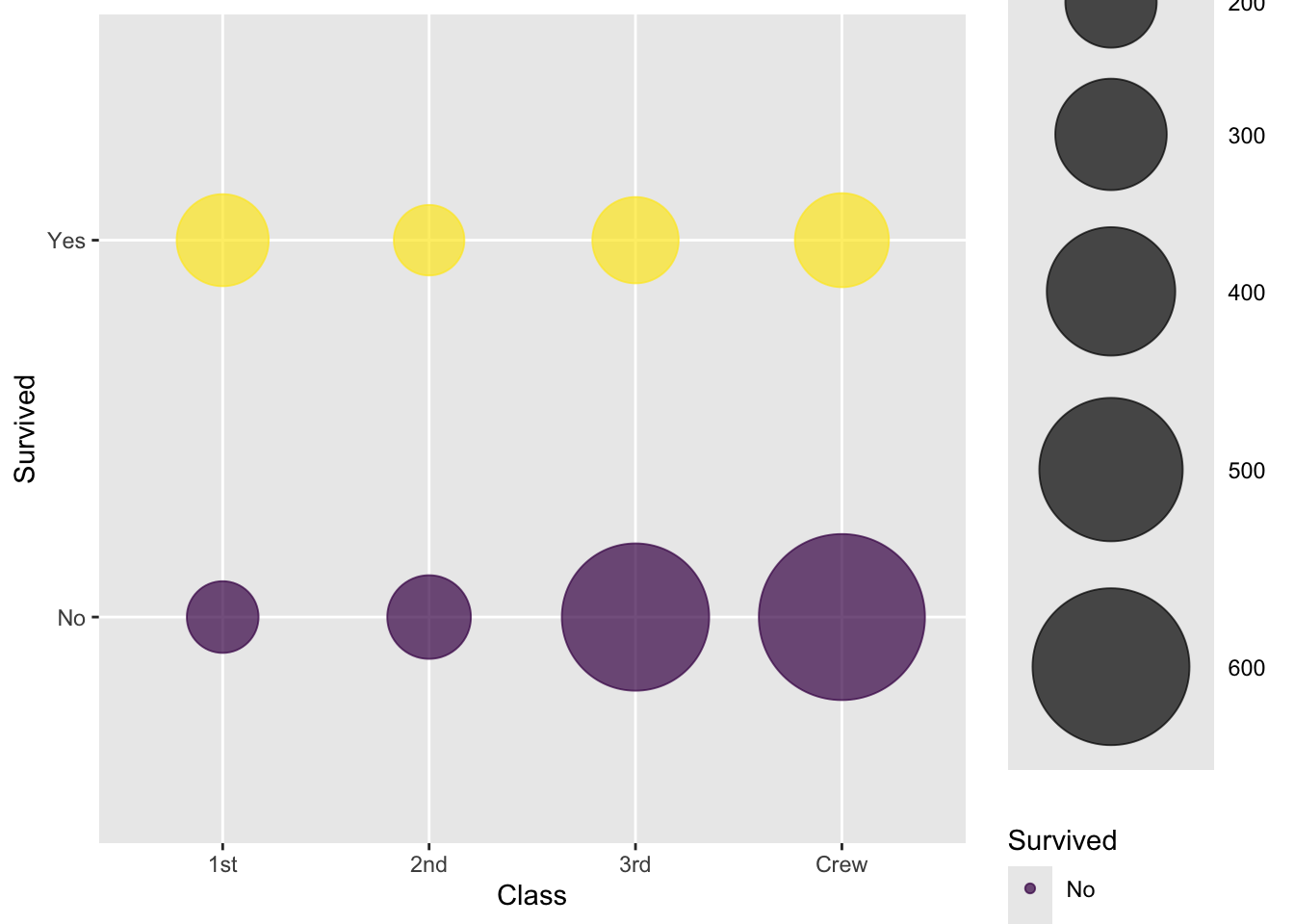
Step 3: outline the circles
To make the circles easier to see (especially where they overlap or sit on a light background), we add a second geom_point() layer: same data, but shape = 1 (a hollow circle) traces an outline around each filled circle. We reuse Survived for the outline color too, but since this is a color aesthetic already mapped to a scale (scale_color_manual above), we need ggnewscale::new_scale_color() to start a second, independent color scale before adding this layer.
ggplot(ds,aes(x=Class,y=Survived,size=Total)) +
  # Points: No = purple, Yes = yellow
  geom_point(aes(color=Survived),alpha=.7) +
  scale_size_area(max_size = 30) +
  scale_color_manual(values = c("No" = clr$purple, "Yes" = clr$yellow)) +
  new_scale_color() +
  # add a small outline of a circle around the filled circles
  geom_point(aes(color=Survived),shape=1, stroke = 1) +
  scale_color_manual(values = c("No" = clr$purple, "Yes" = clr$yellow))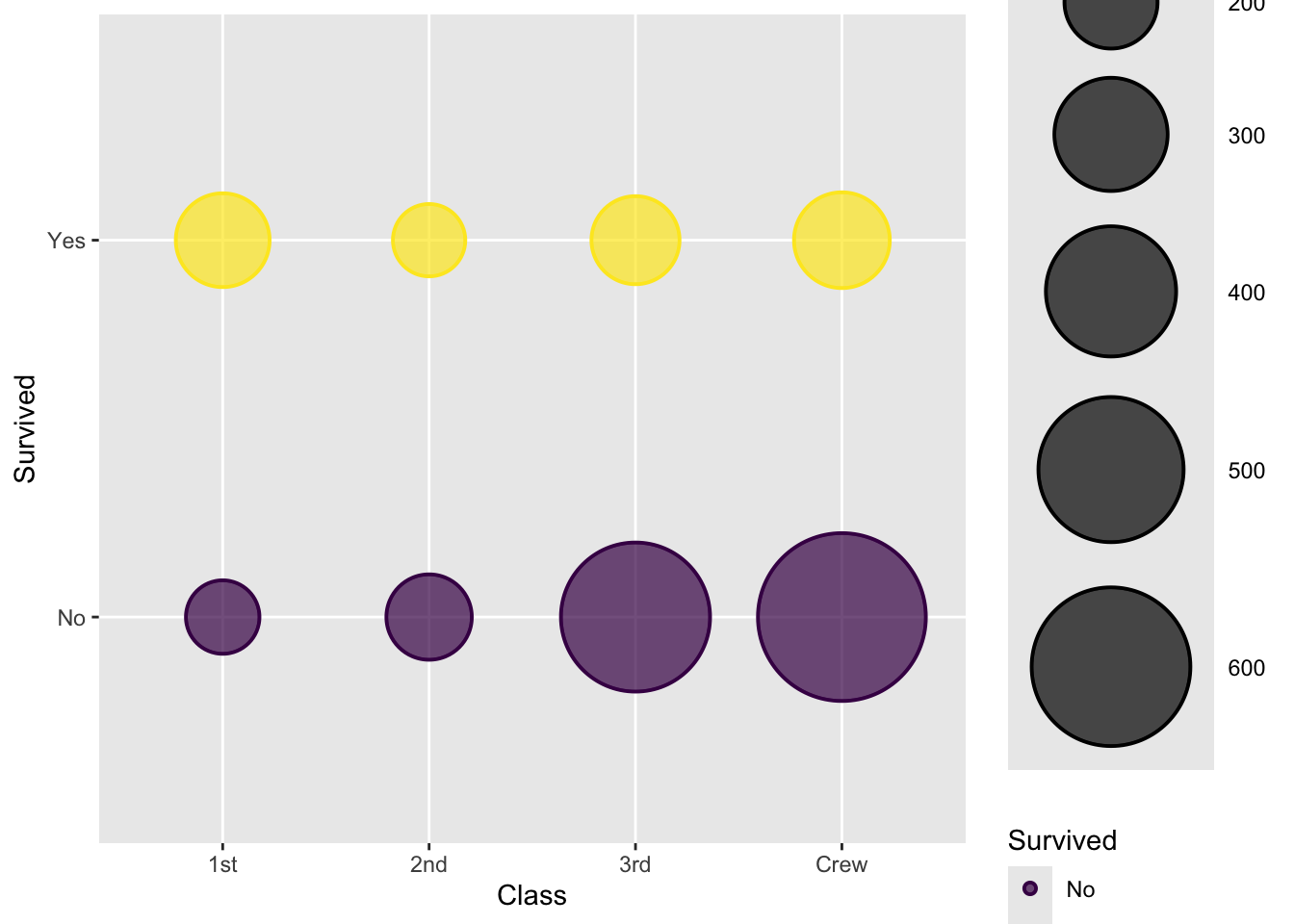
Step 4: add percentage labels
Next we layer geom_text() on top to print the Percent value inside/near each bubble.
ggplot(ds,aes(x=Class,y=Survived,size=Total)) +
  # Points: No = purple, Yes = yellow
  geom_point(aes(color=Survived),alpha=.7) +
  scale_size_area(max_size = 30) +
  scale_color_manual(values = c("No" = clr$purple, "Yes" = clr$yellow)) +
  new_scale_color() +
  # add a small outline of a circle around the filled circles
  geom_point(aes(color=Survived),shape=1, stroke = 1) +
  scale_color_manual(values = c("No" = clr$purple, "Yes" = clr$yellow)) +
  geom_text(aes(label = paste0(Percent,"%")), size = 3)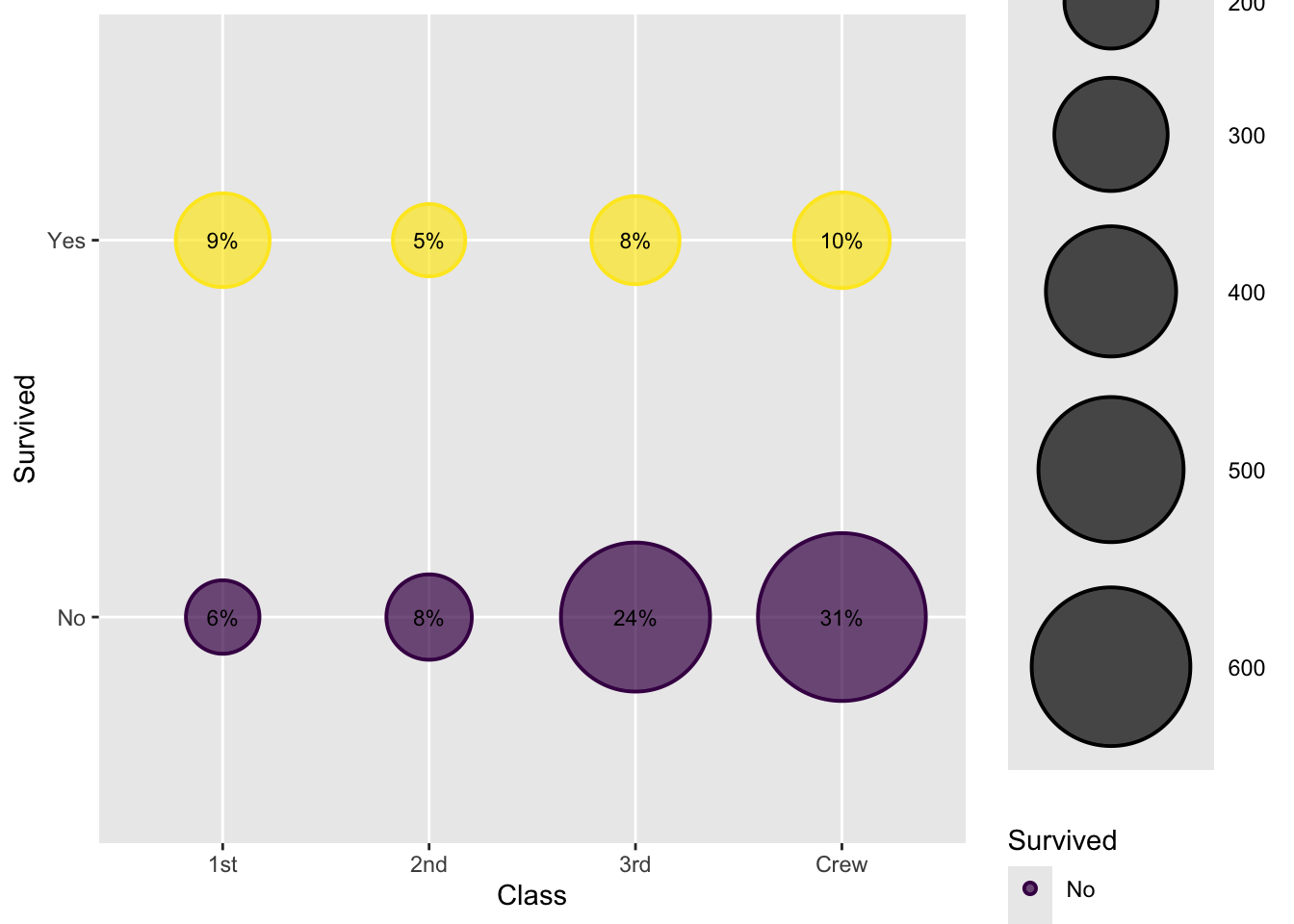
Step 5: swap the label colors
The text is hard to read when it matches the bubble color underneath it. So we map the label color to Survived too, but swap the palette (purple \(\leftrightarrow\) yellow) relative to the points, giving better contrast against each bubble. This needs its own new_scale_color() again, since we already used up one “extra” scale on the outline layer.
ggplot(ds,aes(x=Class,y=Survived,size=Total)) +
  # Points: No = purple, Yes = yellow
  geom_point(aes(color=Survived),alpha=.7) +
  scale_size_area(max_size = 30) +
  scale_color_manual(values = c("No" = clr$purple, "Yes" = clr$yellow)) +
  new_scale_color() +
  # add a small outline of a circle around the filled circles
  geom_point(aes(color=Survived),shape=1, stroke = 1) +
  scale_color_manual(values = c("No" = clr$purple, "Yes" = clr$yellow)) +
  new_scale_color() +
  # Text: colors swapped -- No = yellow, Yes = purple
  geom_text(aes(label = paste0(Percent,"%"), color = Survived), size = 3) +
  scale_color_manual(values = c("No" = clr$yellow, "Yes" = clr$purple))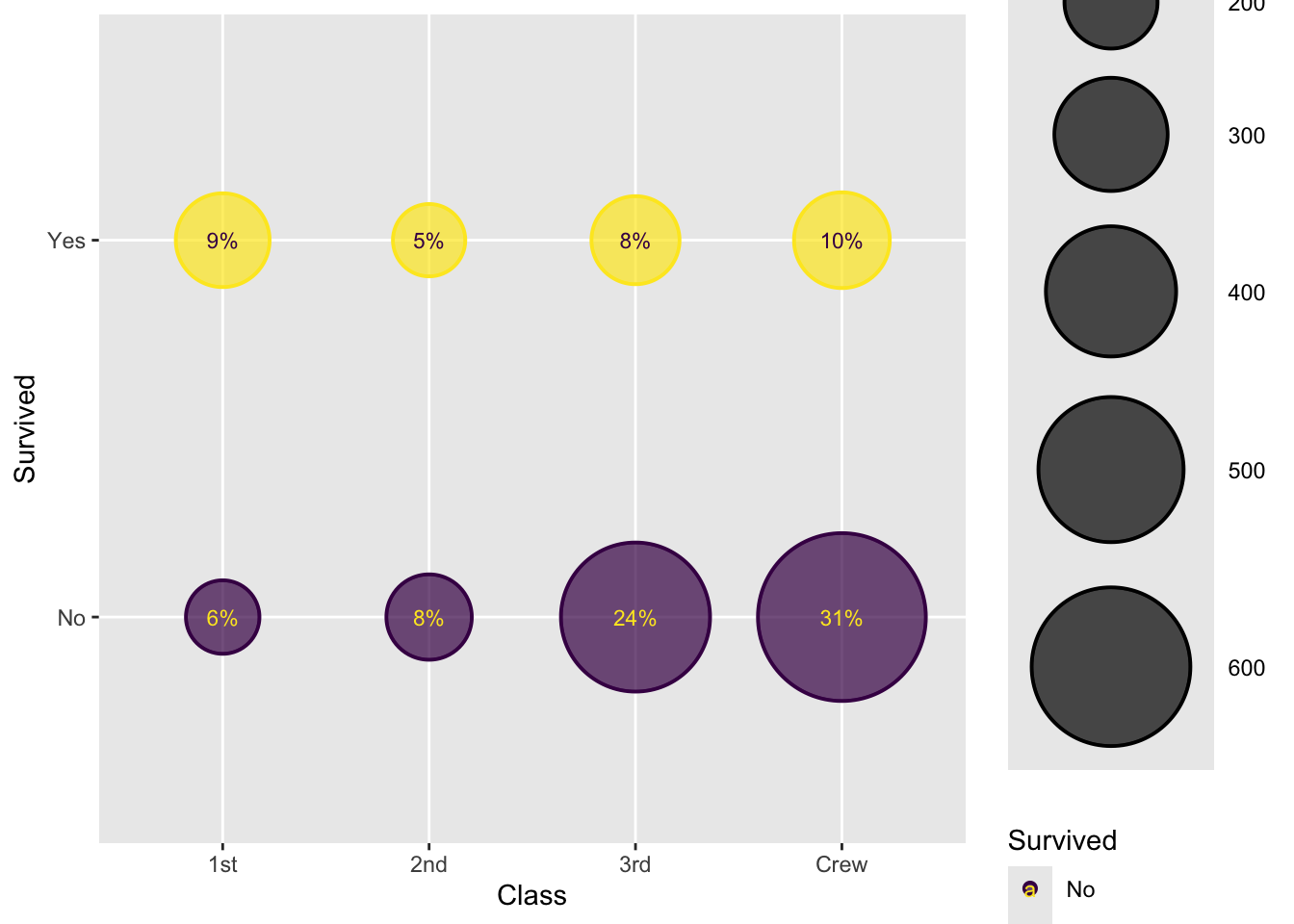
Step 6: clean up the theme
Finally, we remove the (now redundant, and awkward with two color scales) legend, and color/size the title and axis titles to match our palette.
ggplot(ds,aes(x=Class,y=Survived,size=Total)) +
  # Points: No = purple, Yes = yellow
  geom_point(aes(color=Survived),alpha=.7) +
  scale_size_area(max_size = 30) +
  scale_color_manual(values = c("No" = clr$purple, "Yes" = clr$yellow)) +
  new_scale_color() +
  # add a small outline of a circle around the filled circles
  geom_point(aes(color=Survived),shape=1, stroke = 1) +
  scale_color_manual(values = c("No" = clr$purple, "Yes" = clr$yellow)) +
  new_scale_color() +
  # Text: colors swapped -- No = yellow, Yes = purple
  geom_text(aes(label = paste0(Percent,"%"), color = Survived), size = 3) +
  scale_color_manual(values = c("No" = clr$yellow, "Yes" = clr$purple)) +
  theme(legend.position = "none", title = element_text(size = 20, color = clr$purple),
        axis.title.x = element_text(size = 10, color = clr$purple),
        axis.title.y = element_text(size = 10, color = clr$purple))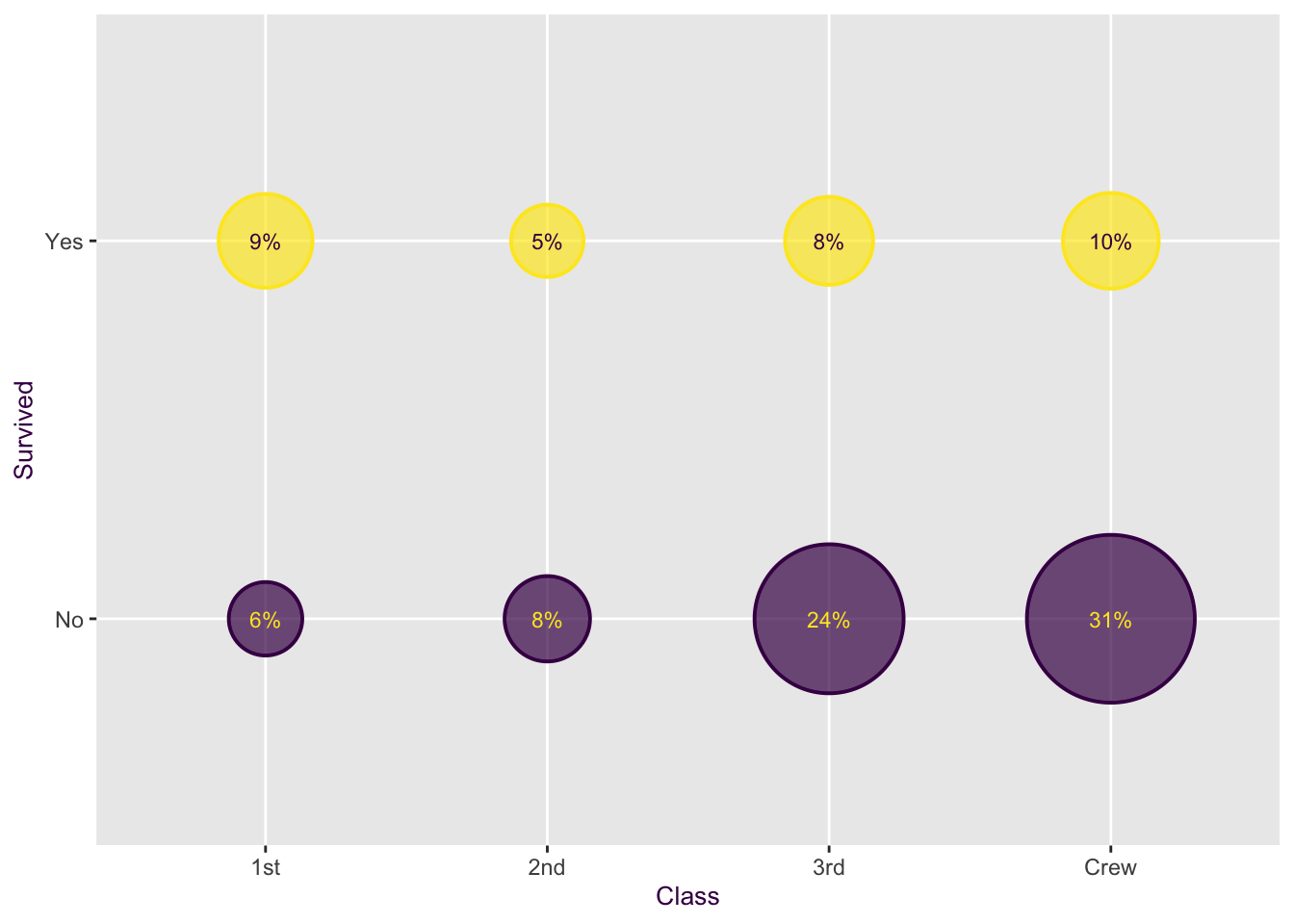
Step 7: add titles and labels
The last touch: informative axis and plot titles via labs().
ggplot(ds,aes(x=Class,y=Survived,size=Total)) +
  # Points: No = purple, Yes = yellow
  geom_point(aes(color=Survived),alpha=.7) +
  scale_size_area(max_size = 30) +
  scale_color_manual(values = c("No" = clr$purple, "Yes" = clr$yellow)) +
  new_scale_color() +
  # add a small outline of a circle around the filled circles
  geom_point(aes(color=Survived),shape=1, stroke = 1) +
  scale_color_manual(values = c("No" = clr$purple, "Yes" = clr$yellow)) +
  new_scale_color() +
  # Text: colors swapped -- No = yellow, Yes = purple
  geom_text(aes(label = paste0(Percent,"%"), color = Survived), size = 3) +
  scale_color_manual(values = c("No" = clr$yellow, "Yes" = clr$purple)) +
  theme(legend.position = "none", title = element_text(size = 20, color = clr$purple),
        axis.title.x = element_text(size = 10, color = clr$purple),
        axis.title.y = element_text(size = 10, color = clr$purple)) +
  labs(x = "Class", y = "Survived", title = "Titanic Survival by Class")